Store Locator & Map
Show all your stores with a beautiful interactive map!
Meet Store Locator & Map
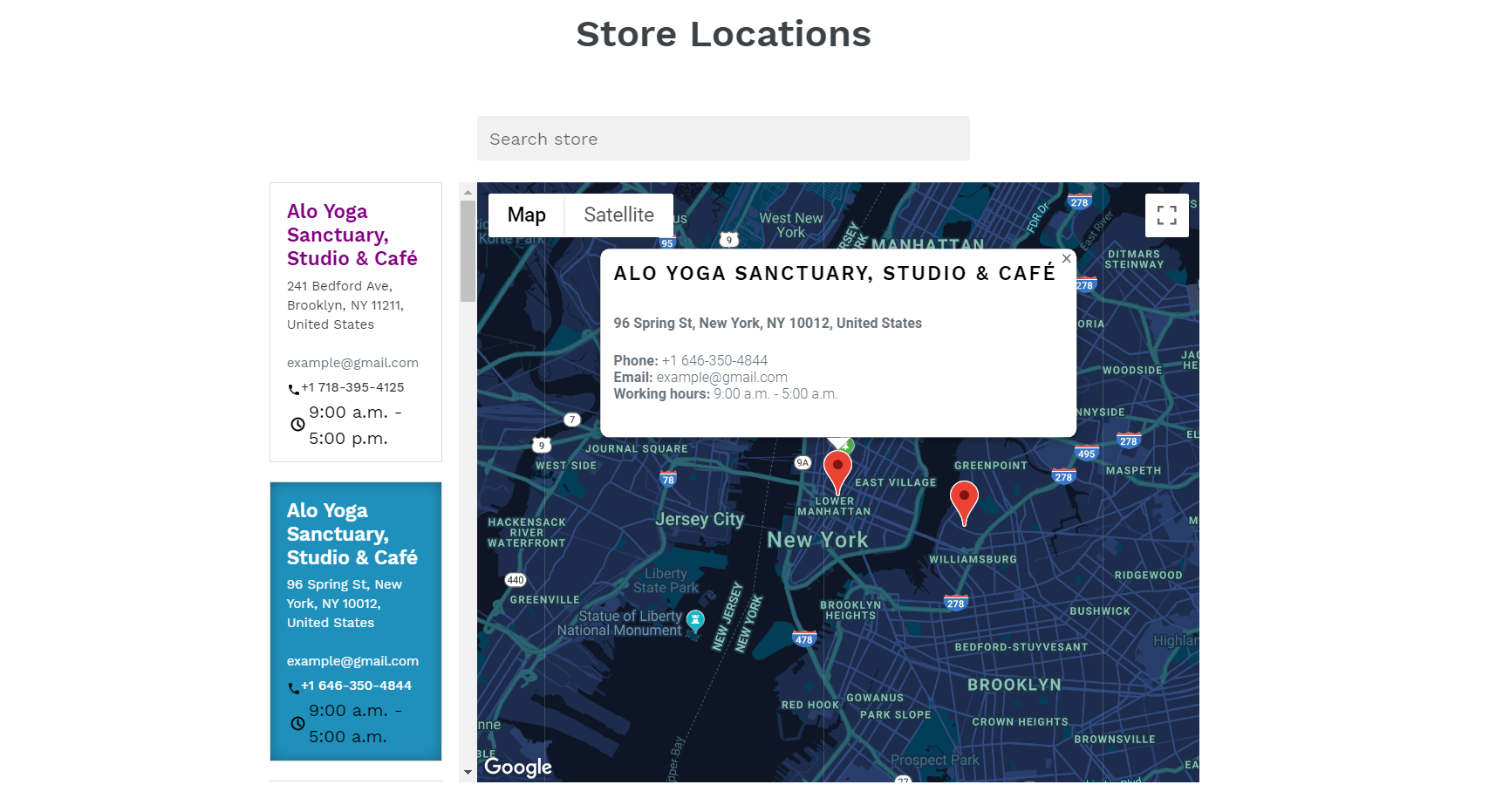
Our Store Locator app will help you show all your physical stores in a single page in your Shopify website. With our app, you can add an unlimited number of store addresses that will be conveniently displayed and ordered as per your personal preferences.

Google Maps integration
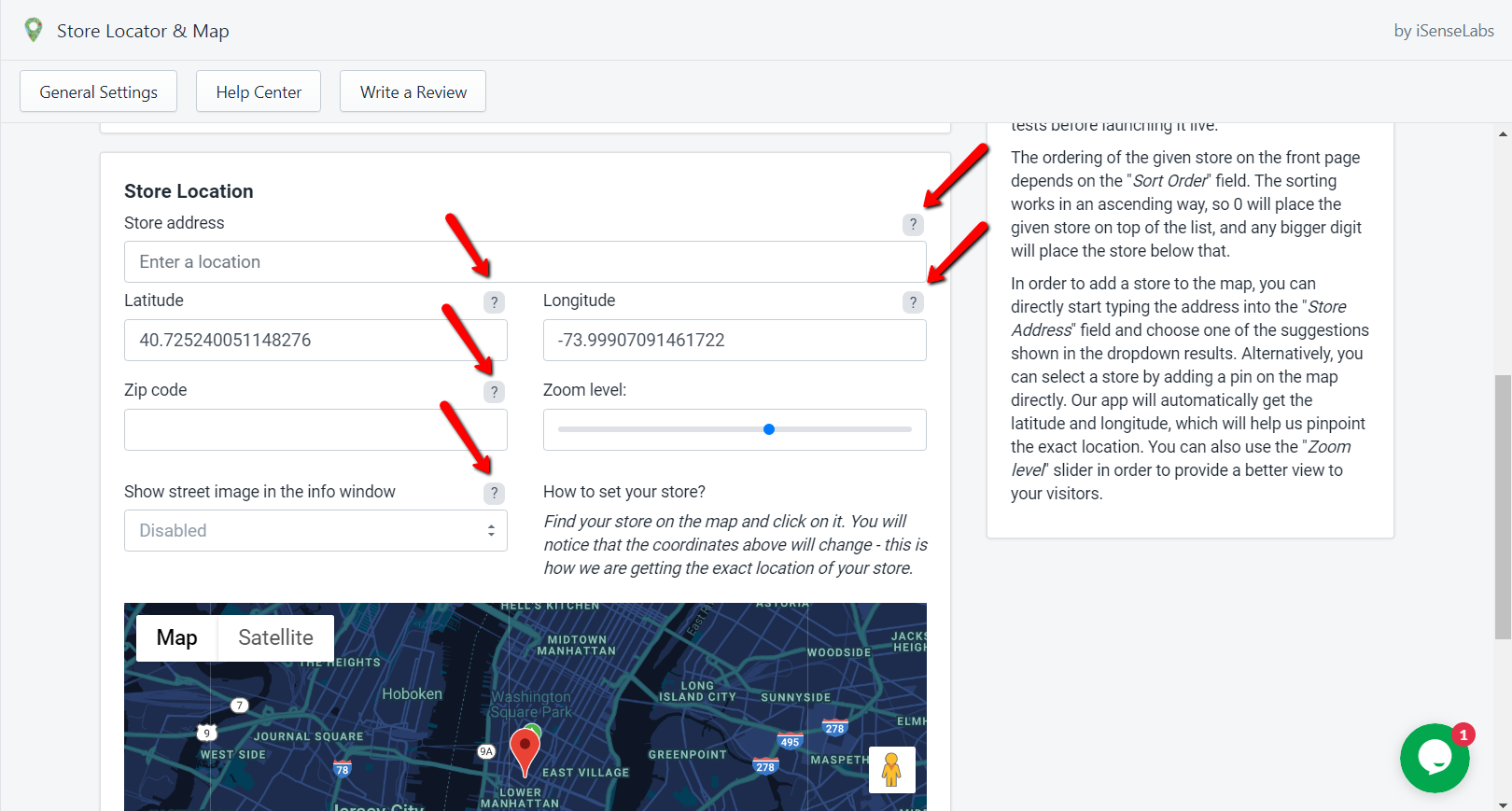
You can create a location simply by choosing an address in Google Maps. A Search bar with auto-complete support is also included.

Interactive map view
The store listing gets automatically updated based on the current map view. You can also sort the stores alphabetically/manually with ease.

Customizable listing page
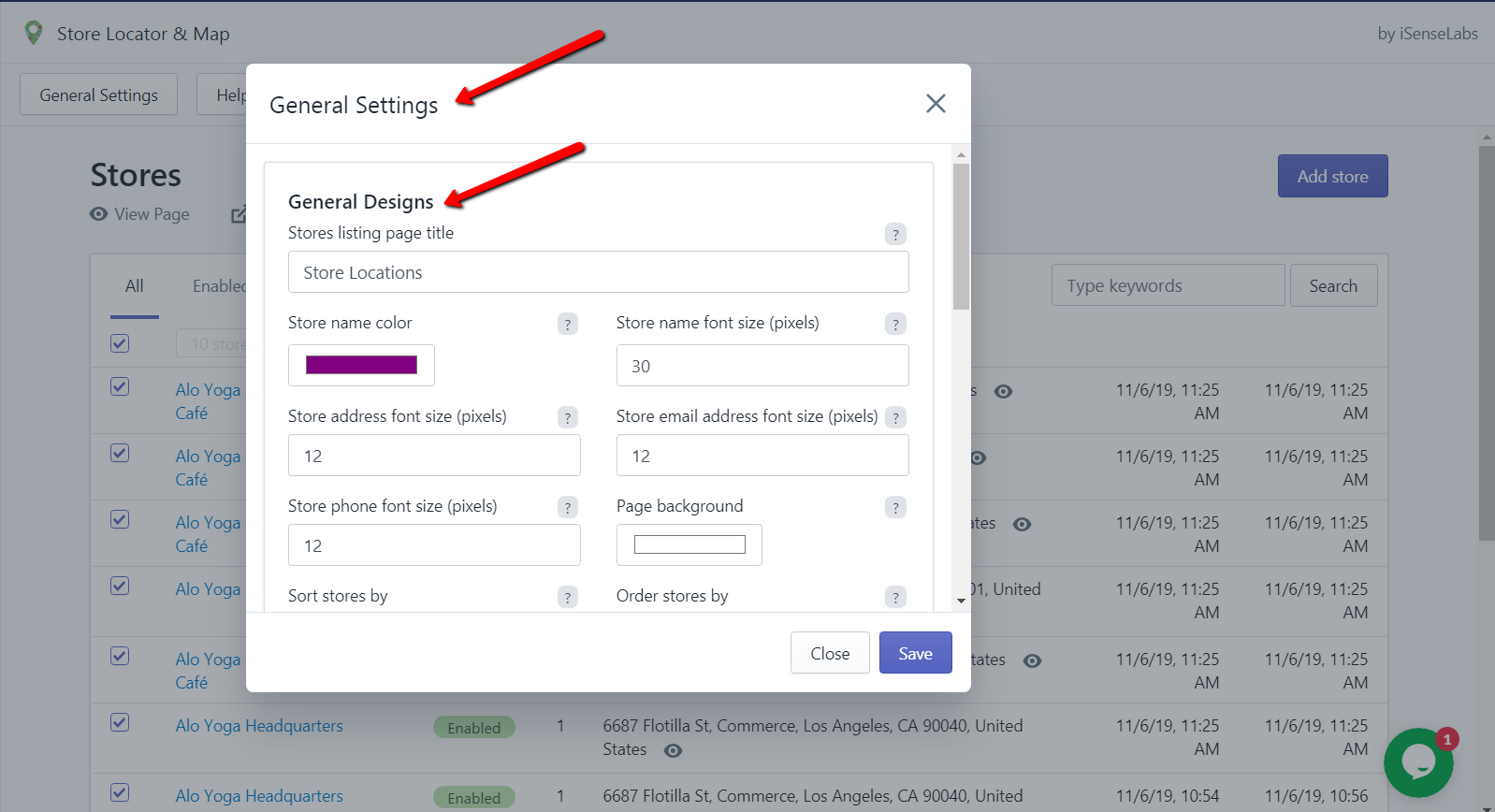
Choose between a variety of templates + fonts and colors for each section on the Store Locator page. CSV Import/Export.

First class support
Got any questions? You can find the answers in our Help Center or directly reach our Support team.


Unique in every way
Here are the things that you will be able to adjust:
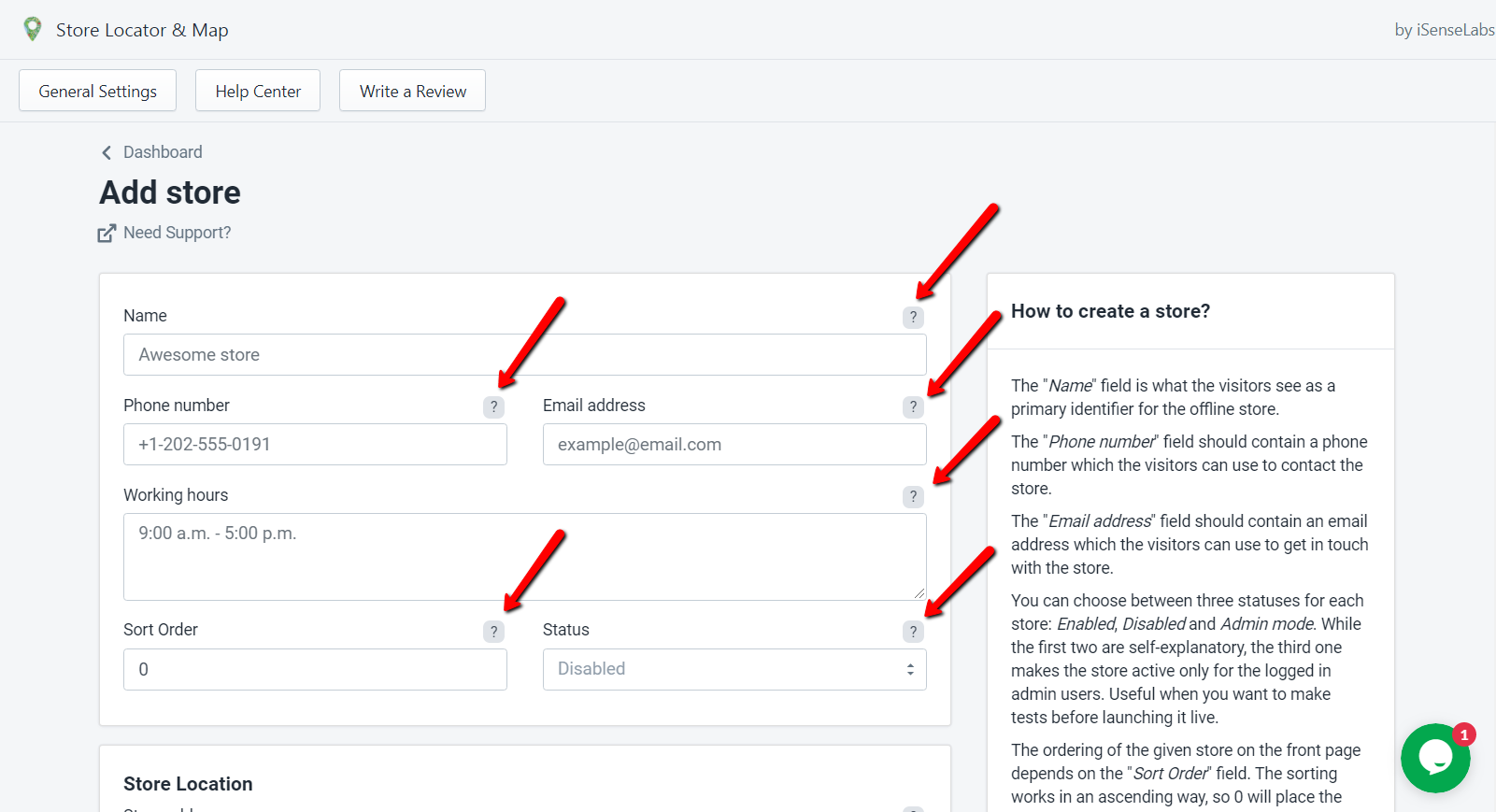
- For each store, you can add information like name, phone number, e-mail address, store address, and postcode (ZIP code).
- Map Designs - you can choose between six beautiful templates for the map design layout on your storefront. Choose the one that suits your theme best.
- Color Options - you will be able to change the store name color as well as the background of the whole page.
- And more ... (check full list below)
Power of customisation
No limits on locations. You can add an unlimited number of stores to the "Our Stores" page.
The "Sort Order" field will help you arrange the stores in a specific order. You can choose between manual ordering or alphabetical ordering.
You can easily change the stores listing page title. For Instance: Our stores, Physical Locations, Store Map Locations, etc.
Keep it simple
Our app is super intuitive and very easy to use. You can get up and running in just a couple of minutes!
If you need help or have some questions, our support team will be happy to help!
You just have to open the app and start adding stores. No coding is required!
Happy Customers
The app is very simple to use and displays all of the information we need. The developer has great communication and was able to implement the few requests we had in a timely manner. The interface is easy to use and looks great on our website! Now customers can browse through our list of dealers and find one near them!
Great extension! And really really good and fast support! 5 stars to this extension!
Hi, Support could not have been better. To the point and very helpful. Shame more companies were not like this. Keep up the great work!
Really impressed with the quick response with the solution to my problem from the support team.
Thank you, all is working well! I'm impressed with the product and the service I have received.
Hi! It was a fantastic! Really! Fast and easy :)
Pricing & Features
15-day free trial
- Unlimited Stores & Views
- Customizable Listing Page
- Autocomplete Search
- Different Map Styles
- Responsive Design
- CSV Import/Export
- Help Center
Frequently Asked Questions
-
What does this app do?
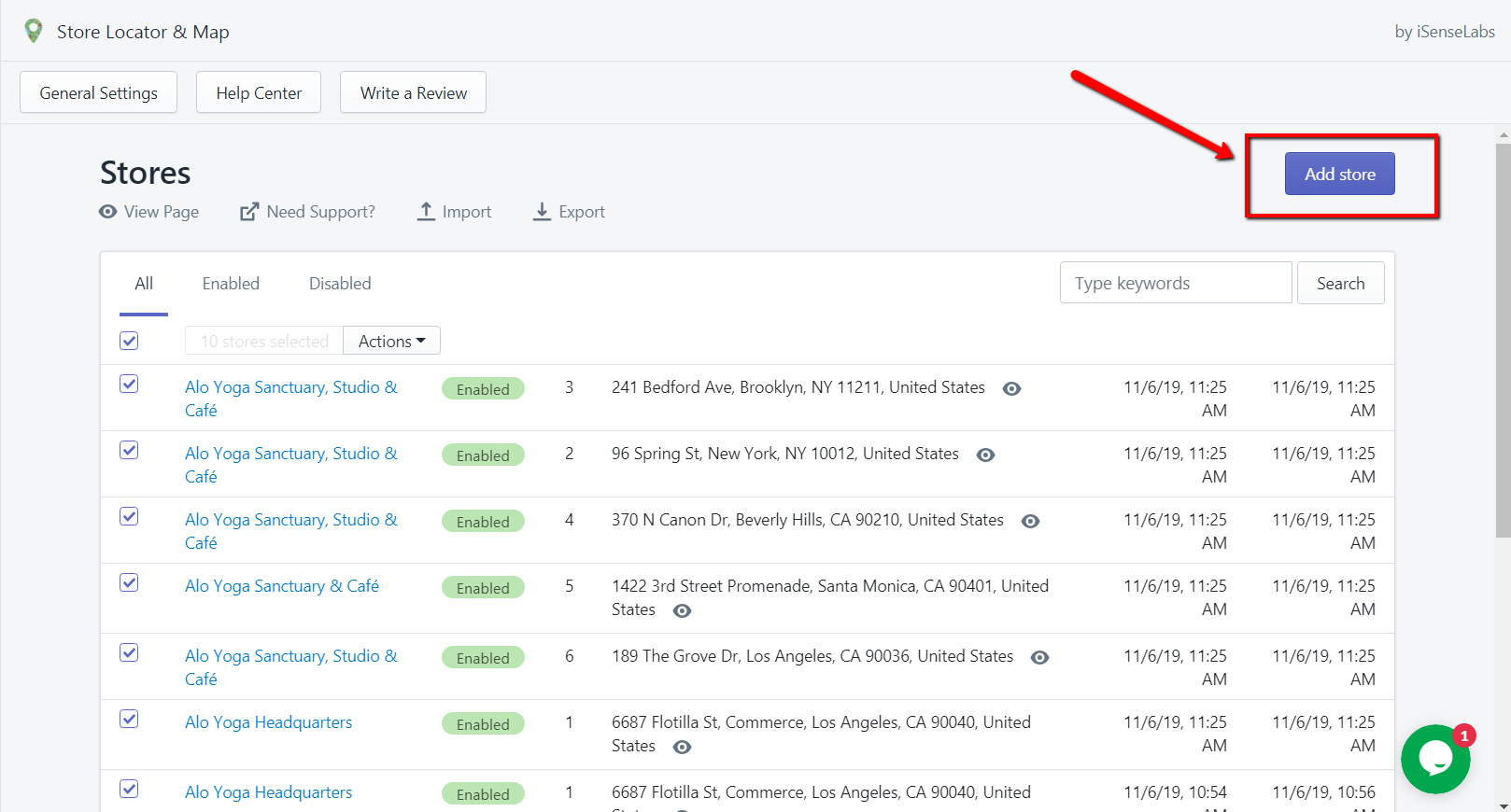
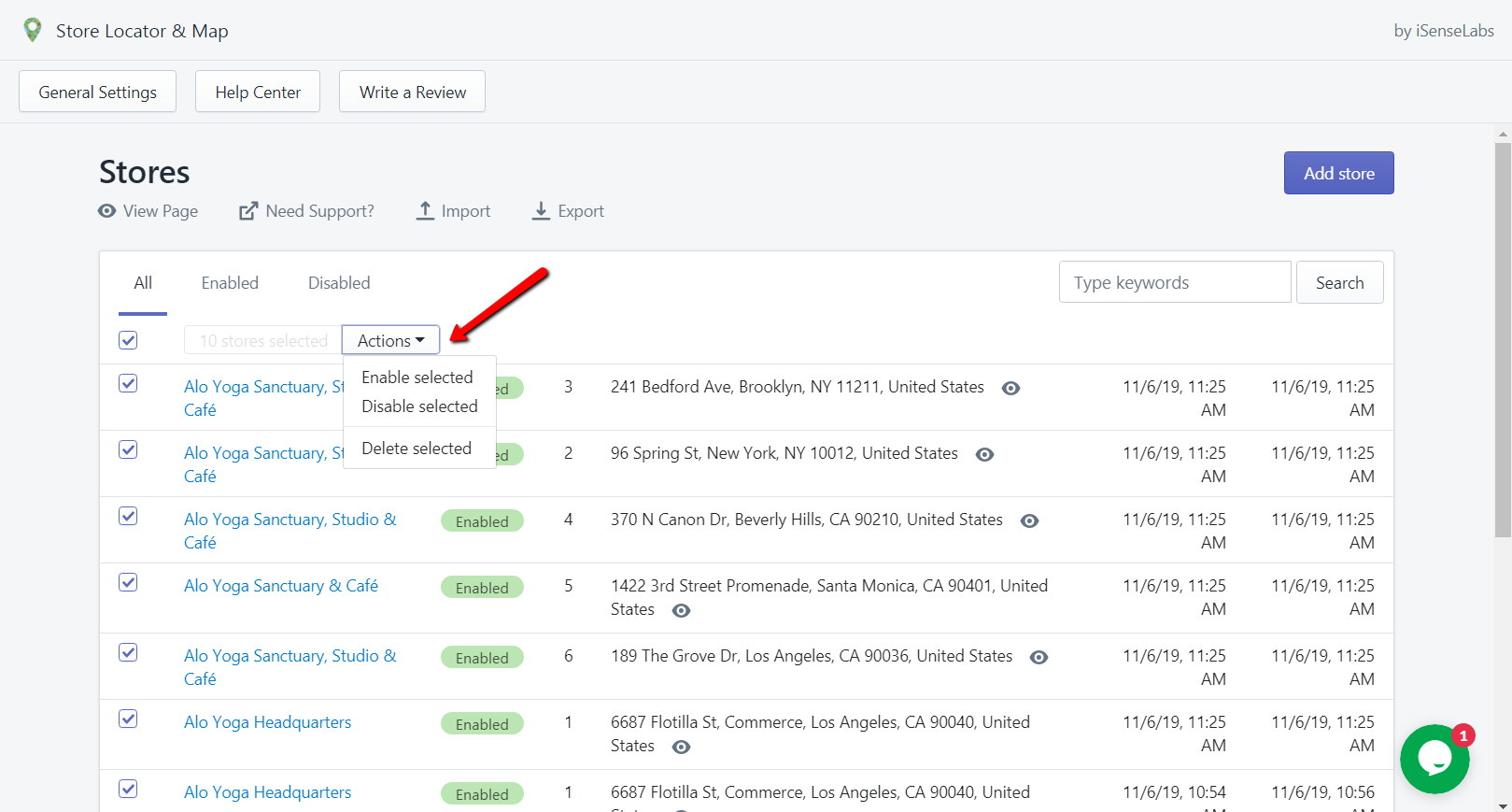
It will help you create a beautiful list showing all of your offline stores. You have the ability to add, edit, and remove stores. You also have full control over the design on the page, which will display all your offline stores.
 .
-
Are there any additional steps that I should do after I install the app?
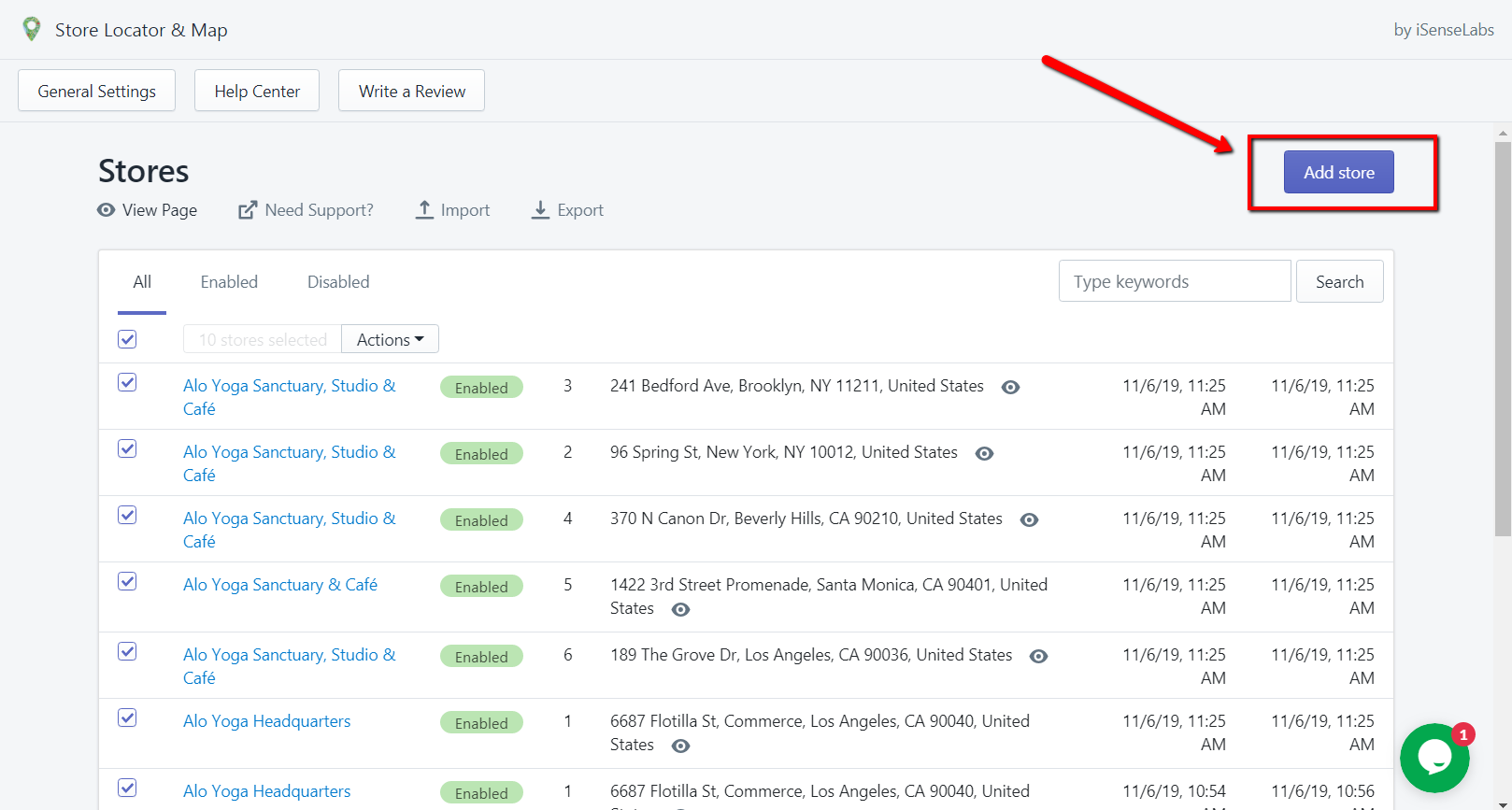
There is just one additional step - you have to add the store listing page to your front store. You can add it on the navigation menu, in the footer or on any page that you want. You can see the link of the page from "Dashboard" -> "View Page".
If you want to add the page in one of your navigation menus, you have to go to "Online Store" and then "Navigation". Check this video for more details.
Adding a link to a specific page depends on the theme that you are using. If you need help with any of this, do not hesitate to contact us - our team will be more than happy to help you.
That's all! After this, you can directly start by creating a store.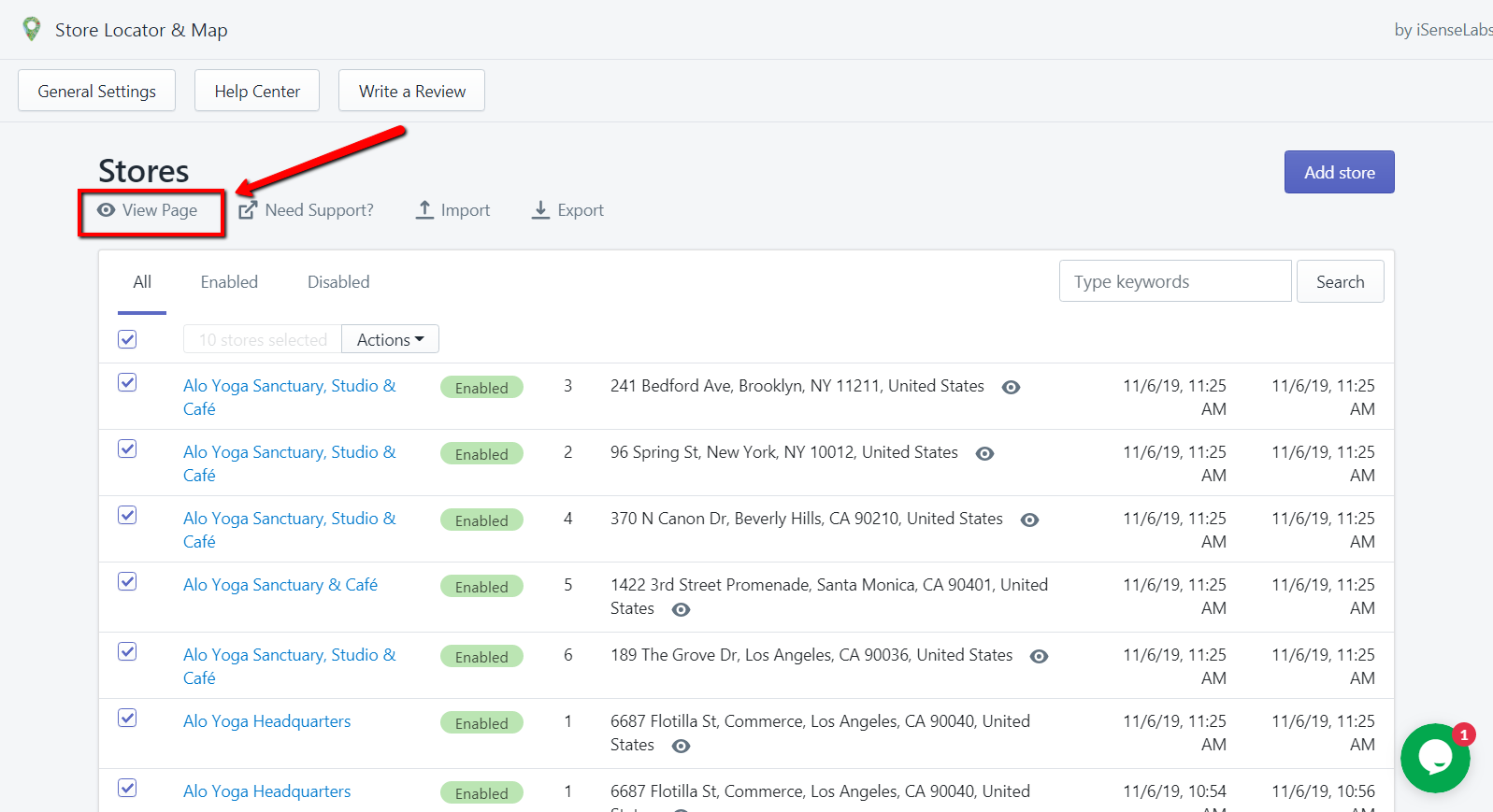
-
How to create a store?
You have to navigate to the "Dashboard" and then click on the "Add store" button. A page will be displayed, where you will find detailed instructions for each field. There are small question icons near each input, which will give you more information on it.